You can keep relatives updated without posting your children on a public social profile. The best approach depends on what you want: a quick update, an album you can return to, or a place for family conversations.
At a glance
- A group chat suits quick updates; a dedicated album keeps moments together.
- Choose a sharing method your least confident relative can use.
- Check album audiences and browser-link settings before sharing.
- Start with a few relatives and a short weekly update.
Choose the job you want sharing to do
If you only want to send this afternoon’s photo to two people, your existing chat may be enough. If you want to look back at a child’s year, a dedicated album gives those updates a home outside the message stream.
Ask whether relatives need to add photos, leave comments or simply view. Those are different requirements, and the easiest solution may differ for each family member.
Give the family a place to come back to
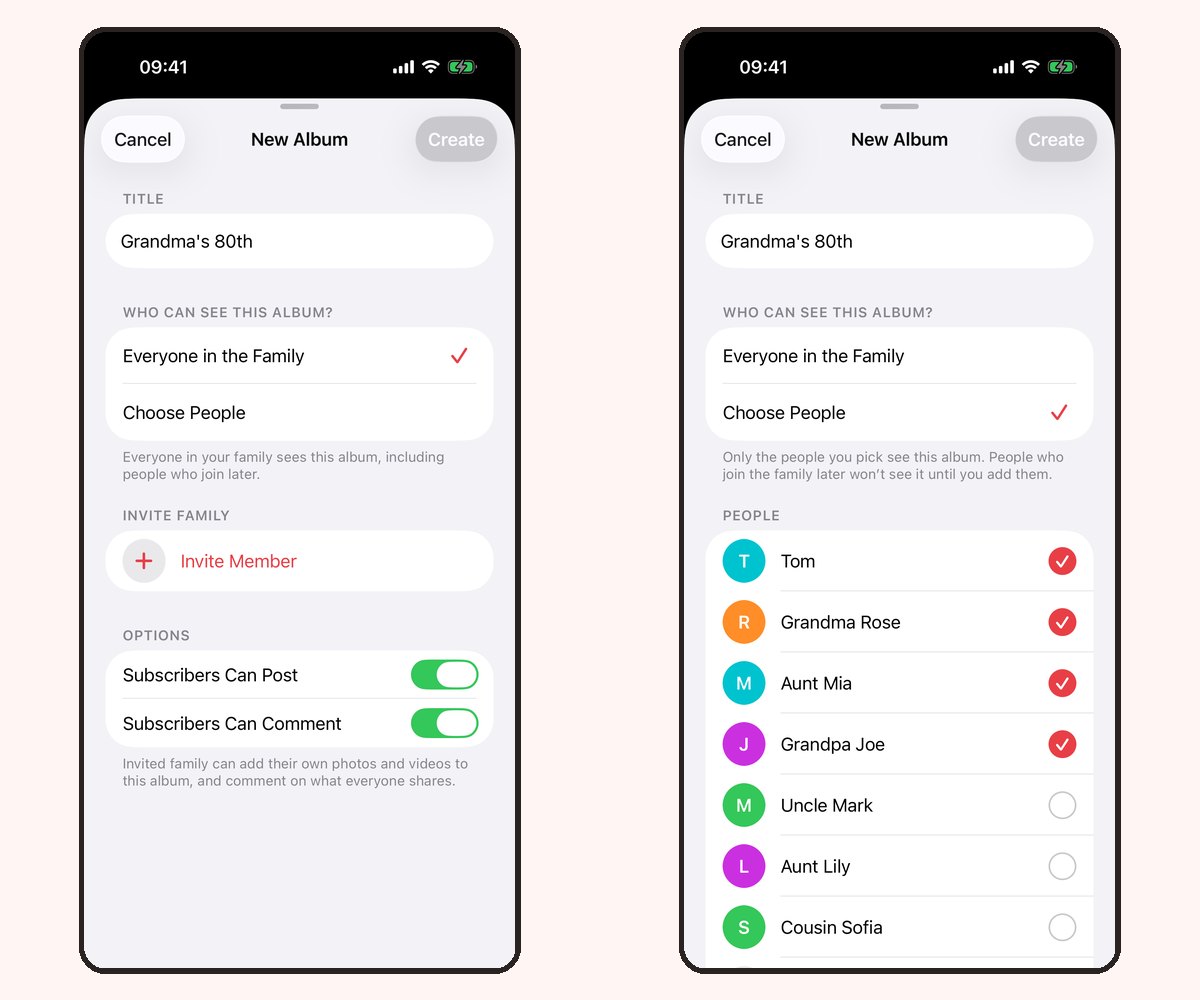
Our Family Album is designed for parents who create and manage albums on iPhone or iPad. Choose the family members who can see an album, post photos with captions, and keep app comments and reactions beside the moments they refer to.
There are no ads. The free plan includes 20 photos per family each calendar month. Premium adds video uploads and unlimited photos, with one subscription covering the family.

Include people who do not want another app
Version 1.5 includes read-only browser links through Share without an app. A recipient on Android or a computer can open the link without signing in. They cannot upload, react or comment in the browser.
Create a link for each recipient so you can revoke it separately. Anyone holding an active link can view its album, so treat it as a key and send it privately. Learn how browser sharing works.
Make the switch easy
- Choose one album and a few favorite photos.
- Invite two or three relatives first.
- Explain whether they should join the app or open a browser link.
- Agree to ask before forwarding photos outside the family circle.
- Share one update regularly rather than asking everyone to learn every feature at once.
You can keep your group chat for arranging visits and use the album for memories. There is no need to move every family conversation into a new place.
Compare before choosing
Apple Shared Albums and Google Photos may already meet your needs. Our comparisons explain Apple Shared Albums and Google Photos, including reasons to keep using them.
Frequently asked questions
Is a private album the same as a public profile?
No. Our Family Album has no public social feed. Album members are chosen by the family, while browser links grant viewing access to anyone holding an active link.
Can everyone in my family use Android?
Parents need an iPhone or iPad to create and manage Our Family Album. Android relatives can view browser links in version 1.5, but cannot participate through a native Android app.
What should I share first?
Try a small set of photos with captions that explain the moment. Our first-album guide walks through getting started.