The short version
- For a few dozen prints, use a free phone scanning app such as Google PhotoScan. It is quick and good enough for sharing.
- For the best quality at home, use a flatbed scanner at 600 dpi for standard prints and 1200 dpi for small ones.
- For whole boxes and albums, a scanning service saves time, but you pay per photo and your originals leave the house.
- Name files with dates and names, keep two backups, then share copies with family so they can add the stories.
The best way to digitize old photos depends on how many you have. Scan a small pile with your phone, use a flatbed scanner at 600 dpi when quality matters most, and send large collections to a scanning service. Whichever you choose, write down who is in each photo while someone still remembers.
This guide shows how to scan old photos to digital files with all three methods, step by step, with a comparison table, the settings that matter, and what to do with the files once they are scanned. A family visit over Thanksgiving or the winter holidays is a good moment to start: the albums are in the room, and so are the people who can name everyone in them.
The 3 ways to digitize old photos

| Method | Cost | Quality | Time per 100 photos | Best for |
|---|---|---|---|---|
| Phone scanning app | Free | Good for screens and sharing | About 1 hour | A few dozen favorites, quick results |
| Flatbed scanner | The price of a scanner, unless you can borrow one | Excellent at 600 dpi or more | About 2 to 3 hours | Prints you want to keep or reprint |
| Scanning service | Paid per photo, so it adds up | Usually very good, depends on the order | An hour to sort and pack, then a wait of weeks | Boxes, full albums, slides and negatives |
The times assume loose standard prints (4x6 inches) and include cropping. Photos stuck in old "magnetic" albums take longer with every method.
Method 1: Scan old photos with your phone
A phone is the fastest way to start, and for most family sharing it is good enough.
- Install a scanning app. Google PhotoScan is free on iPhone and Android. It takes several shots of each print and combines them to reduce glare, then crops and straightens the result.
- Find soft, even light. Daylight near a window works well. Avoid overhead lamps that reflect straight off glossy paper.
- Lay the print flat on a dark, plain surface. A dark background makes edge detection easier.
- Hold the phone parallel to the photo and follow the app's prompts. Keep your shadow off the print.
- Check the crop and save. Zoom in on faces before moving to the next one. Rescanning now is easier than finding the print again later.
On an iPhone you can also use the document scanner built into Notes or Files (look for Scan Documents). It is handy for letters, recipe cards, and the handwriting on the back of a photo, but it saves into a document rather than straight to your photo library, so a photo scanning app or the Camera is usually better for the pictures themselves.
Drawback: a phone captures what the camera sees, not what a scanner reads. You get a sharp copy for screens, but fine detail and large reprints are better from a flatbed.
Method 2: Use a flatbed scanner (best quality at home)
If you want the best quality, use a flatbed scanner. Many all-in-one printers already have one.
- Clean the glass with a soft, lint-free cloth. Dust shows up as white specks on every scan.
- Choose the resolution: 600 dpi for standard prints, 1200 dpi for small or wallet-size prints you might want to enlarge.
- Scan in color, even for black-and-white photos. Color keeps the tones of aged paper, and you can convert later.
- Place several prints on the glass at once, with a small gap between them. Most scanner software can split them into separate files.
- Save a master copy as TIFF or high-quality JPEG. Keep the master untouched and make edits on a copy.
Slides and negatives are a different job. They need a scanner with a film holder or a dedicated film scanner, usually at 2400 dpi or higher. If you have a lot of them, this is where a service often makes more sense.
Drawback: it is slow. Plan a few evenings rather than one afternoon.
Method 3: Send them to a scanning service
When you have shoeboxes rather than a pile, a scanning service saves you many hours. You sort the photos, mail them or drop them off, and get digital files back.
Prices vary a lot by resolution, photo size, and whether you send loose prints, albums, or slides. Many big retailers, including Walmart and Costco, have offered photo digitizing through mail-in partners, alongside specialist companies. Check current prices and turnaround on their websites before you commit, and ask:
- what resolution you get and whether it costs extra;
- whether they scan in the country or ship the photos abroad;
- whether your originals come back, and how they are packaged;
- whether they can scan photos still stuck in albums.
Drawback: your irreplaceable prints leave your hands. Scan your absolute favorites at home first, just in case.
Tips for better scans
Prepare the prints
- Wipe off dust with a soft brush or microfibre cloth. Do not use water or cleaning sprays.
- Handle prints by the edges, ideally with clean, dry hands or cotton gloves.
- Do not force photos out of old sticky albums. Scan the whole page instead, then crop.
Get the quality right
- Avoid glare: soft side light for phones, closed lid for scanners.
- Scan at 600 dpi or more if you might ever reprint or enlarge.
- Leave color correction for later. A faded original scan is easy to fix; an over-edited one is not.
Fix common problems
- Glare or bright patches: move the light to the side, or tilt the print slightly away from the window. With a scanner, close the lid fully.
- Curled prints: put them under a heavy book overnight before scanning. Do not try to flatten them with heat.
- Blurry phone scans: tap to focus on a face, hold still, and clean the camera lens. If it is still soft, try the flatbed.
Name and date your files
Scanned files get today's date, not the year the photo was taken. Put the real date in the file name so photos sort properly:
1974-07_Lake-Tahoe_Grandma-Rose-and-Tom.jpg
If you only know the decade, use 1970s_. Then group files in folders by decade or by the original album.
Back up in two places
Keep one copy on a computer or external drive and another in cloud storage you control. Two copies in different places protect you from a dead drive or a lost phone. A sharing app is not a backup on its own.
Record the story
Scan the back of any print with handwriting. Then ask the oldest relative in the room who, where, and when. A scan without names is just a nice picture to the next generation.
Share the scans with your family
Once the photos are digital, the best part is showing them to the people in them, and letting them fill in what you do not know.

Here is a simple way to do it with Our Family Album, a private app for families on iPhone and iPad:
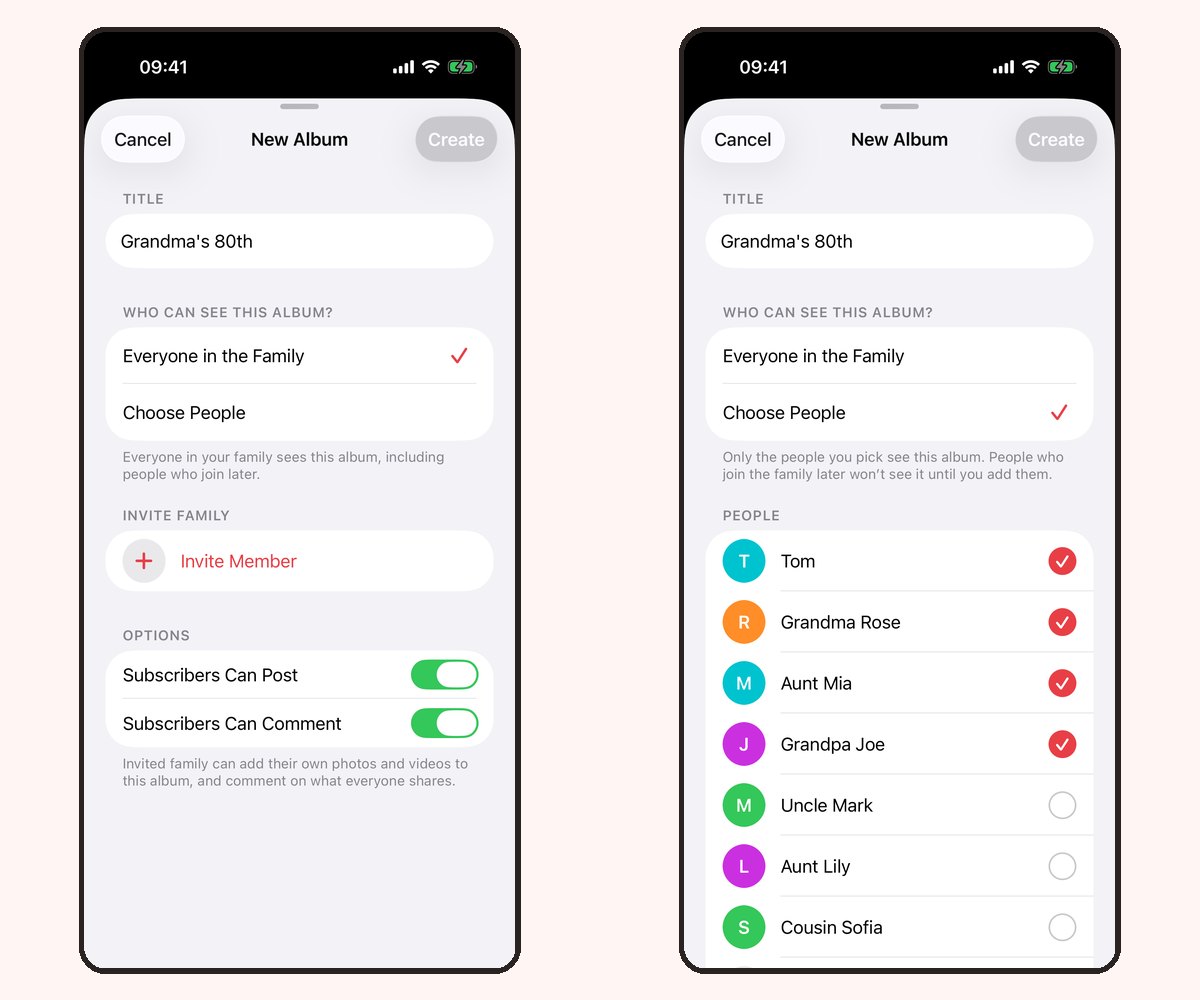
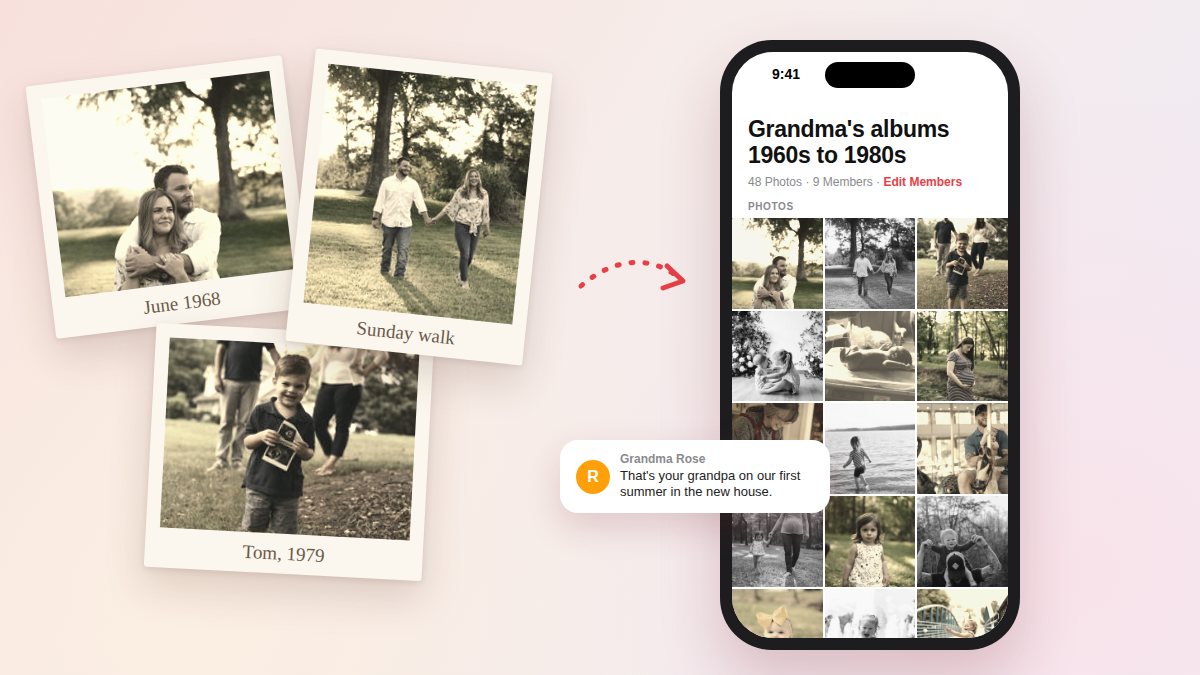
- Create an album with a clear name, such as Grandma's albums, 1960s to 1980s.
- Choose who can see it: everyone in the family, or only the people you pick.
- Add a batch of scans with a caption that gives the year and place.
- Invite relatives and leave commenting on, so an aunt can reply "That's Uncle Joe, summer 1972".
- Send a read-only browser link to anyone who does not want to install an app. They can look, but they cannot comment.

This is where the stories come back. A cousin recognises a house, an uncle remembers the car, and the names end up next to the photo where the next person will find them. Keep the scanned masters in your own backup; the album is where the family enjoys them and adds to them.
A note on plans: Our Family Album is free to download, and each family can share 10 photos a month for free. Premium adds unlimited photos and videos, and one subscription covers the whole family. If you have scanned hundreds of prints, start with a few favorites each month, or check Premium in the app. The first family album guide covers setup, and sharing photos with grandparents helps if the person who owns the albums is not on an iPhone.
Make it a holiday project
Family gatherings are the easiest time to borrow albums. Set up a scanning corner with a phone or laptop and scanner, and ask the person who owns the photos to sit with you. Scan in the evening, share a few the next morning, and let the comments keep going after everyone goes home. It also helps long-distance family stay connected between visits.
Frequently asked questions
What is the best way to digitize old photos?
For quality, a flatbed scanner at 600 dpi. For speed with a small pile, a phone scanning app. For large collections, a scanning service. Many families combine them: a service for boxes, home scanning for favorites.
How do I scan a photo that's already printed?
Use a phone scanning app such as Google PhotoScan, which reduces glare and crops for you, or place the print on a flatbed scanner. Lay the photo flat, use even light, and check the result before moving on.
What resolution is best for scanning old photos?
600 dpi for standard prints. 1200 dpi for small prints you might enlarge. Slides and negatives need 2400 dpi or more with a film-capable scanner.
How much does it cost to digitize 1,000 photos?
Doing it yourself with a phone is free apart from your time. A scanning service charges per photo, so 1,000 prints can add up to a few hundred dollars depending on resolution and extras. Compare current prices from a few services before ordering.
Will Walmart digitize photos?
Walmart and other large retailers have offered photo digitizing through mail-in partners. Services and prices change, so check their current options online or ask at the photo counter.
How do I organize 30 years of digital photos?
Use folders by year, then by event. Rename files to start with the date (YYYY-MM-DD), delete obvious duplicates, and keep two backups in different places. Then share the best ones in a family album rather than everything at once.
Can I share scanned photos with family without social media?
Yes. A private family album lets you share with chosen relatives only. See how to share a photo album with family for the options.
Start with one album
Pick one album, not the whole attic. Scan it with whatever you have, name the files with dates, back them up twice, and share the best ones with the people who can tell you who is in them. The next album will go faster.