Start with one album, a few favorite photos and a couple of relatives. You can learn what works for your family before inviting everyone or organizing years of pictures.
At a glance
- Create and manage your family on iPhone or iPad with iOS 16 or later.
- Choose an album audience before uploading photos.
- Invite app members for conversation, or send read-only browser links in version 1.5.
- Start free with 20 photos per family per calendar month.
Set up your family
Download Our Family Album and sign in with Apple or your email. Follow the app’s setup to create your family and add your children if you want to personalize their story. If someone has already invited you to their family, use that invitation rather than creating a duplicate family.
Create an album and choose its audience
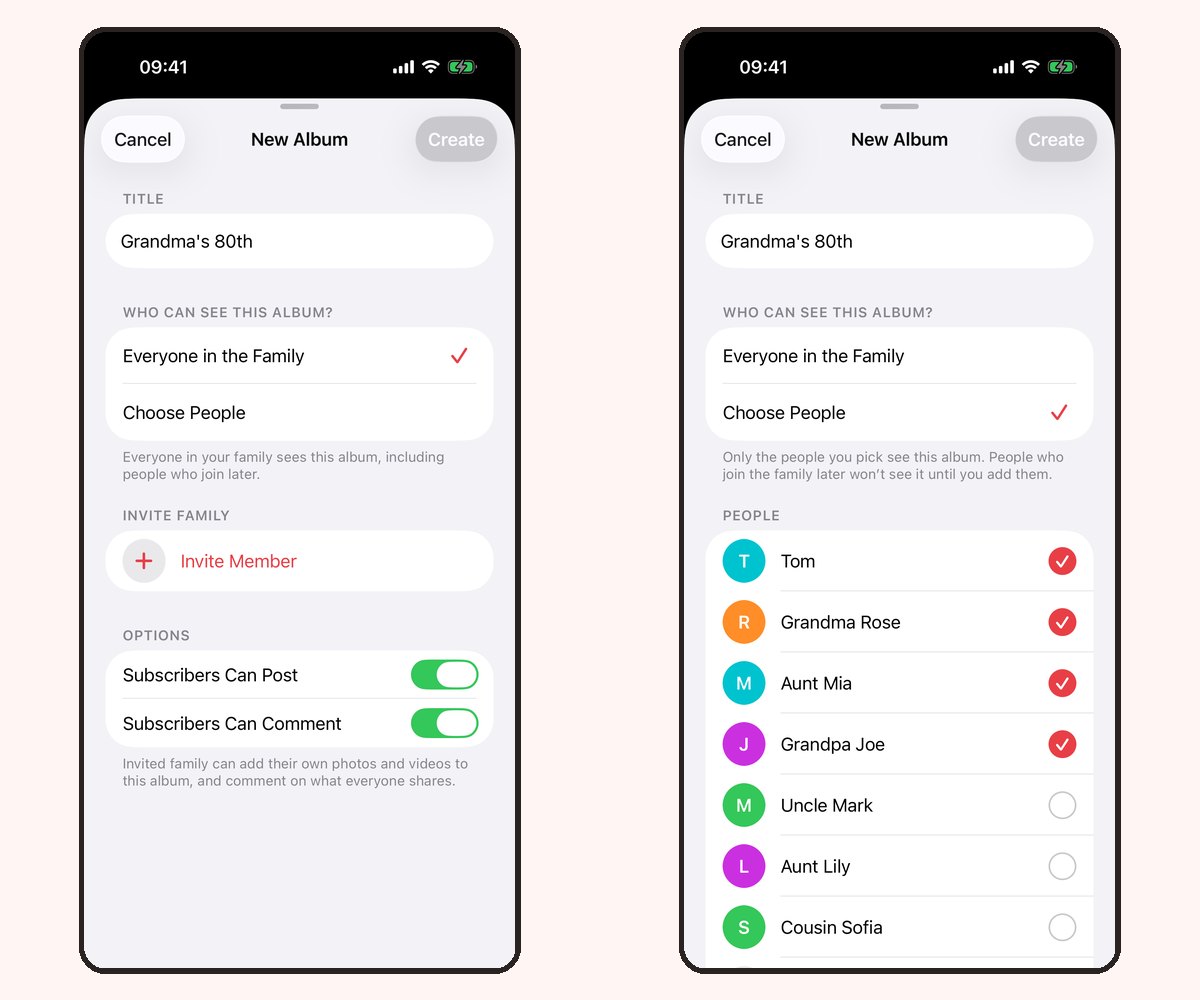
Open Albums and use New Album. Give it a name that makes sense to relatives, such as “Everyday moments” or “Emma’s first year”.
Choose Everyone in the Family for a family-wide album, including people who join later. Use Choose People when only selected relatives should see it. Review the audience before uploading.

Add your first photos
Open Add, choose a few photos and select the destination album. Check the selection before posting. Where the posting flow offers a caption, add a sentence about the moment so relatives know what they are looking at.
The free allowance is 20 photo uploads per family per calendar month, shared across the family. Premium removes that monthly photo limit and adds video uploads. Deleting a photo does not restore an upload to the monthly allowance.
Invite relatives in the way that suits them
For iPhone or iPad users who want to participate, invite them from the Family screen. They open the invitation and sign in, then participate according to the permissions you give them in the album.
For a relative who only wants to view, use Share without an app in version 1.5. Choose the album, create a recipient link and send it privately. Browser links work without an account, including on Android or a computer; they are read-only.
Read the grandparents invitation guide for the difference between app membership and browser access.
Check the first experience together
Ask one relative to open the album while you are on a call. Confirm they can see the right photos and understand whether they should comment in the app or simply browse the link.
Agree whether family photos may be forwarded outside the album. Anyone with an active browser link can view its album, and previously saved copies cannot be recalled when access ends.
Frequently asked questions
Can I join an existing family instead of creating one?
Yes. Ask a family member for an invitation and use the joining flow. Avoid creating a second family if the album you want already belongs to your relatives.
Does each grandparent need Premium?
No. One Premium subscription covers the family. You can also start with the shared free allowance of 20 photos per calendar month.
Can I manage the album in a web browser?
Our Family Album’s browser links are for read-only viewing. Use the iPhone or iPad app to create albums, upload and manage access.