
The short version
- Invite close family to the app when they should add photos, comment, or react.
- Send a read-only browser link when somebody only needs to view one album without installing an app.
- Export or message selected photos for a one-time handoff that does not need to stay updated.
- Review the album, recipients, expiry, and permissions before sending anything.
The best way to share a photo album with family depends on whether the album should keep updating and whether relatives should contribute. Use an app invitation for an ongoing shared space, a private browser link for read-only access, or a one-time export for a fixed set of photos.
Pick the right sharing method first
- Add photos and join the conversation: send an app invitation so the person can contribute and interact according to permissions.
- View one changing album without installing an app: send a private browser link for read-only access while the link is active.
- Receive a few finished photos once: export or message the files; this does not update automatically.
- See photos on a home screen: use an app invitation plus the iPhone or iPad widget.
Do not choose solely by what is easiest to send today. Think about what happens next month. Messaging 100 photos creates duplicates and loses the album structure; an always-active link may be unnecessary for a one-time school event.
Step 1: Create an album with a clear purpose
Make the album specific enough that relatives know what belongs there: Baby's first year, Summer holiday, or Grandparents' favourites is clearer than Photos.
Add a small first set before inviting anyone. Check for screenshots, duplicates, documents, and private details in the background. An album is easier to trust when the owner has already curated it.
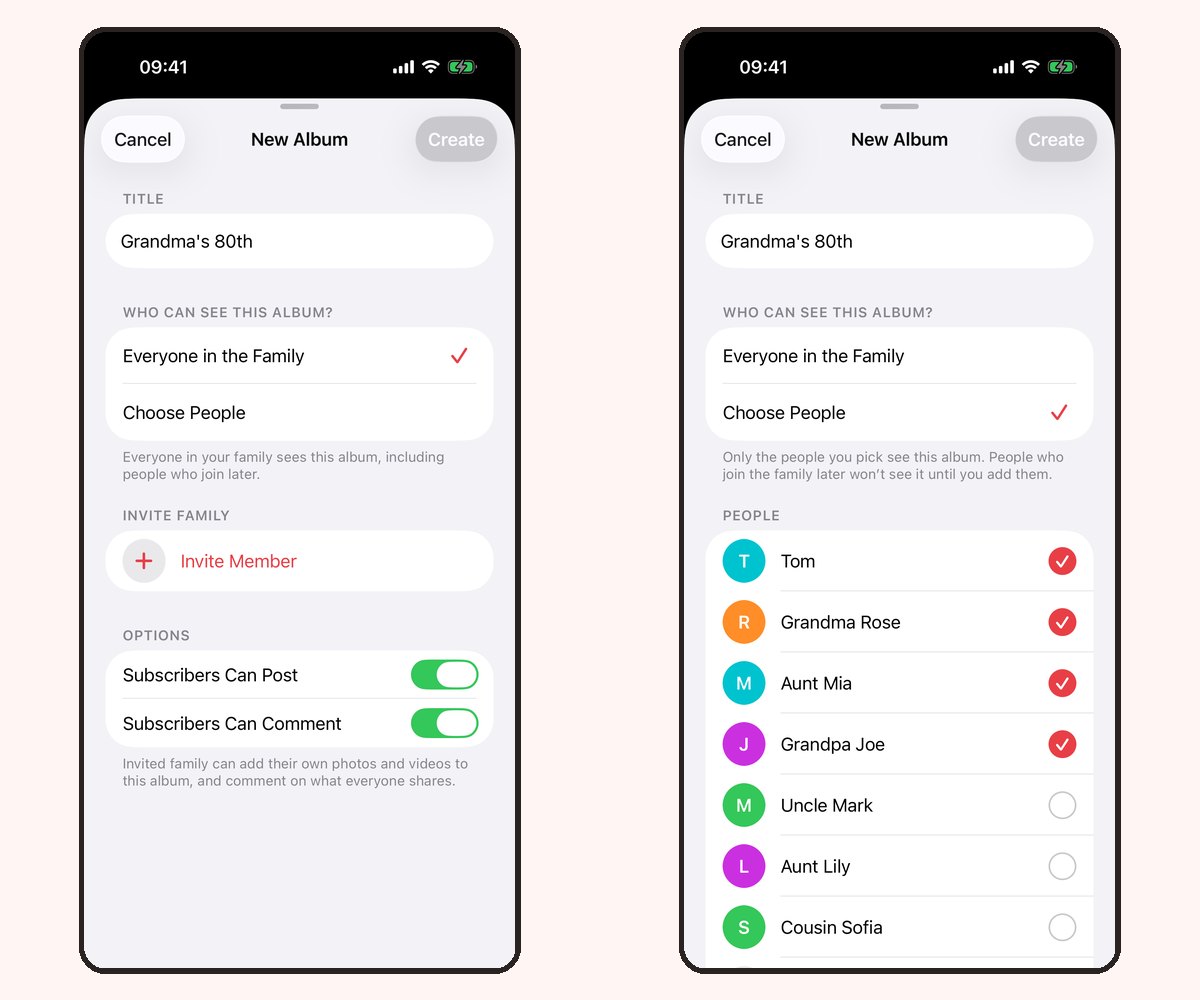
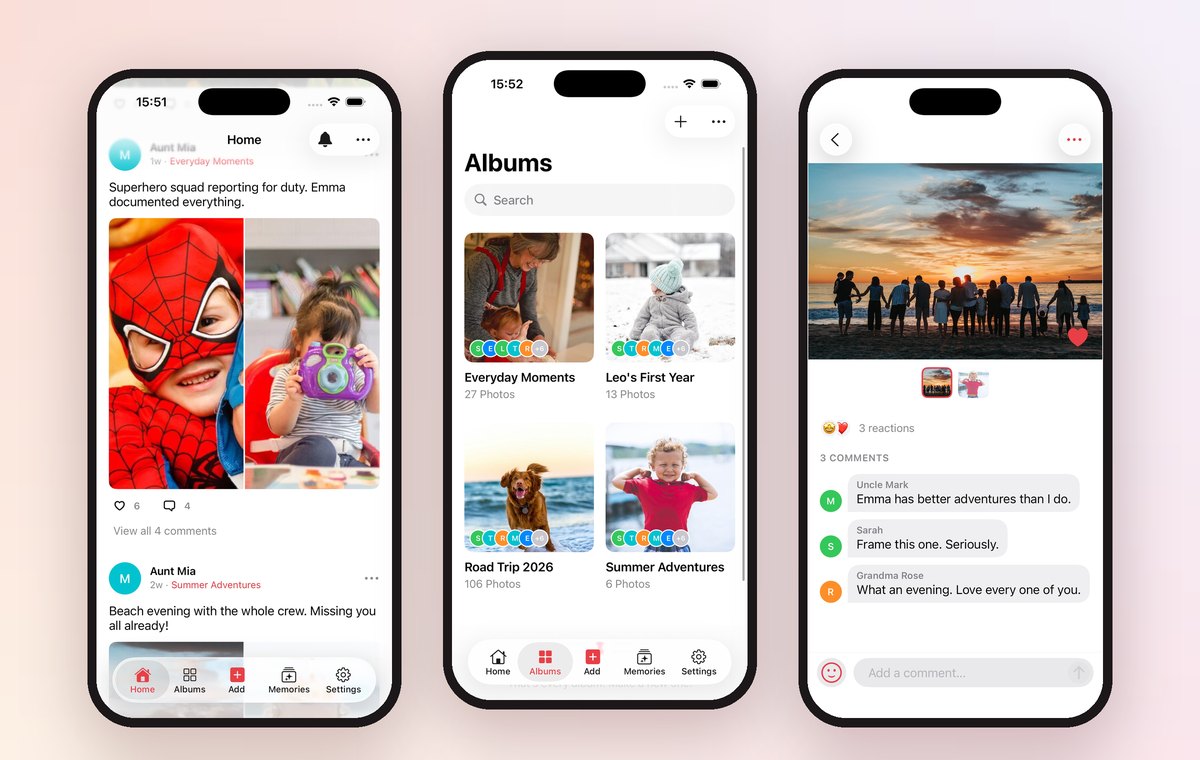
In Our Family Album, use the iPhone or iPad app to create and manage the family and its albums. The first family album guide walks through the initial setup.
Step 2: Decide who should contribute
Invite somebody to the app when you want them to upload their own photos or take part in comments and reactions. This works well for parents, siblings, and close relatives who contribute regularly.
Keep permissions intentional. A person who only wants to see new pictures does not need the same access as a parent maintaining the album. Explain what the invitation is for before sending it, especially when several family albums exist.
Step 3: Use a browser link for read-only viewing
For a grandparent on Android, a relative using a computer, or anyone avoiding another app account, create a Share without an app link. The recipient opens one album in a browser and does not sign in.
Create a separate link for each person and choose an expiry when access is temporary. Anyone with an active link can view it, including if the URL is forwarded, so send it privately and revoke it when needed. The complete browser-link sharing guide covers creation and troubleshooting.
Step 4: Send a one-time copy when updates are not needed
Sometimes a shared album is more infrastructure than the situation needs. If an aunt wants five printable wedding photos, export those files and send them through the agreed channel. They receive a stable copy and do not retain access to future uploads.
Remember that revoking an album invitation or browser link cannot delete files that somebody has already saved or screenshots they have taken. Access controls future viewing, not copies already shared.
Step 5: Give the album a simple routine
An album stays useful when the owner does a little maintenance:
- add a short batch rather than every near-duplicate;
- put photos into the correct album before sharing;
- remove expired links and people who no longer need access;
- tell relatives when you expect them to contribute;
- keep originals backed up outside the sharing app.
For long-distance families, a weekly or monthly upload works better than a flood followed by silence. The goal is a space relatives will actually open.
Privacy questions to ask before sharing
Before sending an invitation or link, check:
- Does this person need to view, contribute, or both?
- Is the album limited to the photos intended for them?
- Can access expire, and who can revoke it?
- What happens if the invitation or link is forwarded?
- Are the original files backed up somewhere you control?
Private sharing reduces the audience, but it does not remove the need for judgement. Avoid posting active album links in public messages, support forums, or social profiles.
Sharing with grandparents
Ask which device they actually use. A browser link is often easiest for someone on Android or a computer who only wants to look. The iPhone or iPad app is a better fit when they want notifications, comments, reactions, or a home-screen widget.
Send one short instruction with the invitation: what to tap, whether an app is required, and who to contact if it fails. See the dedicated guide to sharing photos with grandparents for a calmer setup.
Frequently asked questions
What is the easiest way to share a photo album with family?
For an album that keeps updating, invite active contributors to the app and give view-only relatives a private browser link. For a fixed handful of photos, send an export instead.
Can I share an album with someone on Android?
Yes. Our Family Album's Share without an app feature gives an Android or computer user read-only browser access to one album through an active private link.
Is a shared album a photo backup?
No. Keep originals in a separate backup under your control. Sharing access, account changes, or accidental deletion should not be the only thing standing between you and the original files.
Should every relative use the same link?
Create separate browser links for separate recipients. If one is forwarded or no longer needed, you can revoke that link without disrupting everyone else.
Can family members upload photos through a browser link?
No. Browser access is read-only. Invite contributors to the iPhone or iPad app and set the appropriate album permissions.
Choose the smallest level of access that fits the relationship. It makes the album easier to manage and the sharing decision easier to explain.
Manuel Escrig