To make a shared album on iPhone, turn on Shared Albums in Settings, then open Photos, tap Collections, scroll to Shared Albums, tap it and tap the Add button. Name the album, pick some photos, choose who can join, check the temporary switch and tap Done. The exact screens changed in iOS 27, so the steps below cover iOS 27 and iOS 26 separately.
Disclosure: I make Our Family Album, a private family photo app. Every Apple step and limit on this page comes from Apple's own support pages, checked on November 5, 2026 and linked at the end. Menu names can change with iOS updates.
The short version
- Turn on Shared Albums once: Settings, your name, iCloud, Photos, Shared Albums.
- Create the album in Photos: Collections, Shared Albums, then the Add button.
- On iOS 27 you invite people with a link, and they can join from any device, even without an Apple Account.
- Albums created on iOS 27 keep full resolution but count toward the owner's iCloud storage.
- Albums created on iOS 26 or earlier are capped at 5,000 items and reduce photos to 2,048 pixels.
Step 1: Turn on Shared Albums
You only do this once per device. Use the same Apple Account on every device you want to see the album on.
- Update your iPhone to the latest iOS.
- Open Settings and tap your name.
- Tap iCloud, then under Saved to iCloud tap Photos.
- On iOS 27 or later, make sure iCloud Photos is turned on: it is the Sync this iPhone switch under iCloud Photos. Apple says this is not needed for a temporary shared album.
- Under Sharing, tap Shared Albums and turn on the switch. Back on the Photos screen, the row now says On.

Step 2: Create the shared album (iOS 27 and later)
- Open the Photos app and tap Collections at the bottom.
- Scroll down to the Shared Albums section and tap Shared Albums. If you have none yet, the section shows a Start Sharing button.
- The Albums screen opens on its Shared tab (next to Personal and Activity). Tap the Add button (the plus sign at the top).

Then fill in the New Shared Album screen:
- Type a name in Shared Album Name. Tap Add Photos, select the photos to start with and tap the checkmark.
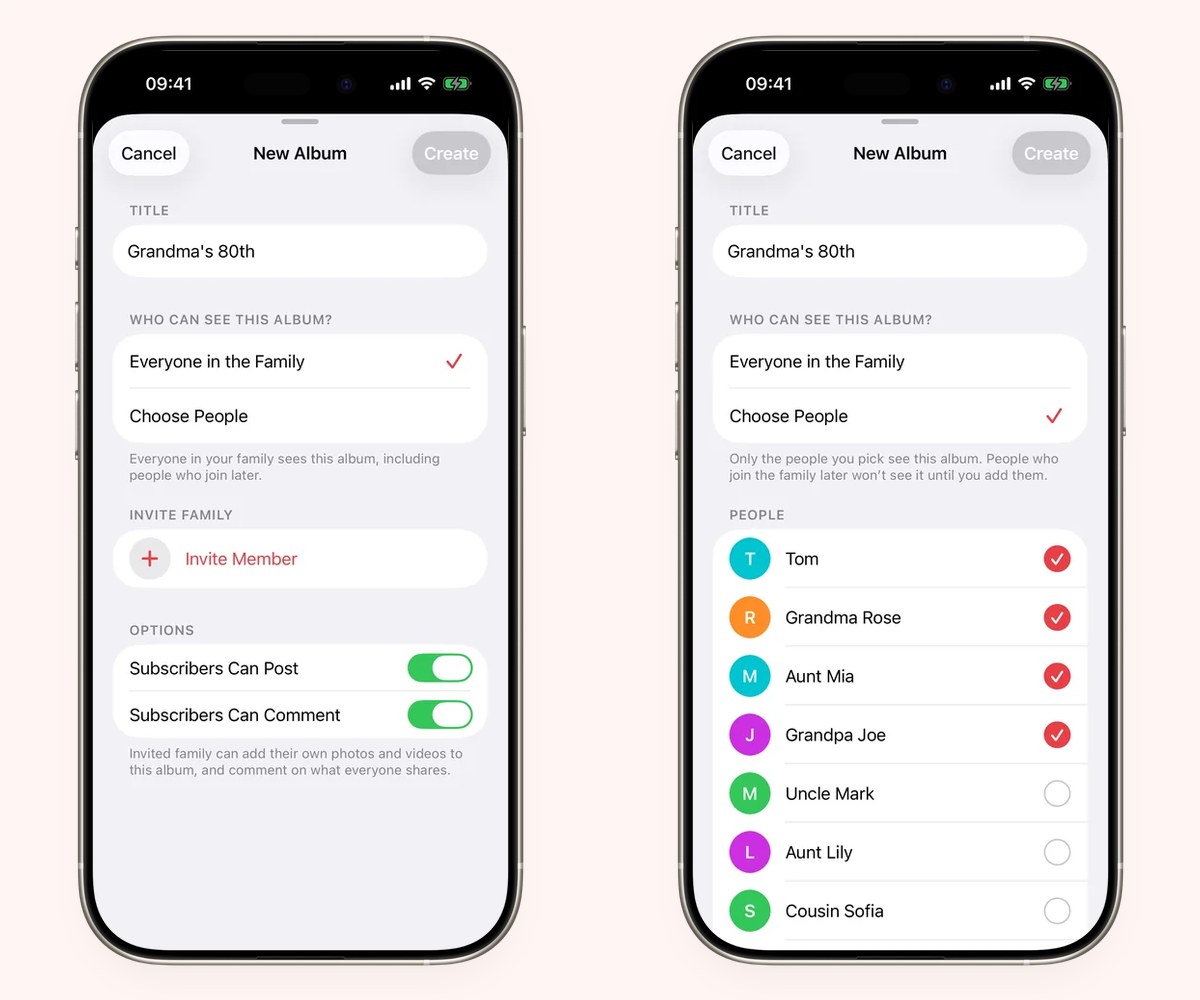
- Tap Sharing Options. Under Who Can Access, pick People You Choose (only people you invite or approve can get in) or Anyone with the Link (people can join without approval).
- Check the Make Album Temporary switch. When it is on, the album expires: after 30 days, any photos or videos not saved to your library are deleted. For a family album you want to keep, make sure it is off.
- Tap the Done button, the checkmark at the top right.

With People You Choose, the Access Requests switch lets additional people who have the link ask to join, and you approve each one. Requests arrive as a notification, or under Collections, the Profile button, then Invitations and Access Requests.
Step 2 on iOS 26: create the shared album
If your iPhone is still on iOS 26, the album is created with the invitations in one go:
- Open Photos, tap Collections and scroll down to Shared Albums.
- Tap Shared Albums, then the Add button.
- Name the album and choose some photos.
- Pick people from your contacts, or type an email address or iMessage phone number, and tap Done.
- Tap Create.
To show the album to someone who does not use iCloud, open the album, tap the More button, tap Shared Album Details and turn on Public Website. Anyone with an up-to-date web browser can then see it.
Step 3: Invite people and let them add photos
On iOS 27 and later:
- Open a shared album you created and tap the Manage Shared Album button (the people icon at the top).
- In the participant list, tap Invite Participants and choose how to send the link, for example Messages or Mail. Mail opens a new email with the album link already in it: add the recipients and send it. Or tap Copy Album Link to paste the link anywhere.
- Tap the Done button (the checkmark) when you finish.

A temporary album shows its end date at the top, with a Save All button to keep its photos in your library.
Your family opens the link on an iPhone, iPad, Mac, Android phone or computer. Apple says friends and family can join and add their own photos on the web, even without an Apple Account or Apple device. Relatives whose Apple devices are not on the latest software have to update, or view the album on iCloud.com.
If someone cannot add photos, open Manage Shared Album, tap their name and check that Can Add Photos is selected. On iOS 26, tap More, then the album name, and turn on Participants Can Add Photos.
Step 4: Add photos and videos
- In your Library or inside any album, tap Select and pick the photos and videos.
- Tap the Share button, then Add to Shared Album.
- Choose the shared album and tap Done (on iOS 26 the button says Post).
Everyone in the album gets a notification. You can also open the shared album and tap the Add tile (the plus sign) after its photos.
Want to share an album you already made? There is no single switch for that. Create a new shared album, then open your existing album, tap Select, choose its photos and use Share, then Add to Shared Album, exactly as above.
Shared album limits: what changed in iOS 27
Most guides still quote the old limits. They now only apply to albums created on iOS 26 or earlier. Albums created on iOS 27, macOS 27 or on iCloud.com follow the new rules:
| Limit | Created on iOS 27 or later | Created on iOS 26 or earlier |
|---|---|---|
| Photos and videos per album | No set limit beyond the owner's iCloud storage (temporary albums: 5,000) | 5,000 |
| Photo quality | Original format, full resolution | Reduced to 2,048 pixels on the long edge (panoramas up to 5,400 wide) |
| Videos | Original format, full resolution | Up to 15 minutes, delivered at up to 720p |
| iCloud storage | Counts toward the owner's storage, including what others add (temporary albums do not) | Does not count |
| People per album | 100, including the owner | 100 subscribers |
| People without an Apple Account | Can join and add photos on the web | Can view a Public Website, if you turn it on |
Older albums stay as they were. To move one to the new rules, open it, tap More and tap Upgrade Shared Album. After the upgrade, new photos are shared at full resolution and count toward your storage, while the photos already in the album do not. Apple keeps an archived copy of the old version for six months.
Free iCloud accounts come with 5 GB of storage. If a busy family album lives on a new shared album, that space can fill quickly, because every grandparent's and cousin's upload counts toward the owner's storage.
If something does not work
- No Shared Albums section in Photos: turn it on in Settings (Step 1) and check you are signed in with the same Apple Account on every device.
- A relative's link will not open the album: their device may not be on the latest software. They can update, or open the album on iCloud.com.
- Someone cannot add photos: check Can Add Photos for that person (iOS 27) or Participants Can Add Photos (iOS 26).
- A child cannot join: a Child Account can only join a shared album if an adult in the same Family Sharing group is also in it.
- iCloud storage is full: delete items, upgrade to iCloud+, or use a temporary shared album, which does not count toward storage but is deleted after 30 days.
When a private family album app fits better
If everyone in your family has an up-to-date Apple device, or is happy to open a link in a browser, and the album owner has iCloud storage to spare, a shared album in Photos is free, built in and now keeps full resolution. Use it. Two cases where Apple is clearly the better fit:
- Relatives on Android who want to add their own photos. Since iOS 27 they can contribute on the web. Our Family Album's app is iPhone and iPad only, and its browser links are view only.
- You want a full-resolution archive. New iCloud shared albums keep originals. Our Family Album is made for seeing and talking about photos, and stores them at screen size, so keep your originals backed up.
A separate family album app such as Our Family Album makes more sense when:
- The album owner's iCloud storage is the problem. Our Family Album does not use anyone's iCloud storage. It is free to start, and one Premium subscription covers the whole family, so grandparents do not need a paid plan of their own.
- Grandparents have older iPhones or iPads. Apple asks participants to be on the latest software or use iCloud.com. Our Family Album runs on iOS 16 or later.
- Grandparents only want to look. Create a private browser link for each person: they tap it and see the album without an app or an account. Links can expire after 30 days and can be revoked one at a time. Relatives can also get new photos by email, with a link to the full album. See sharing photos with grandparents and sharing without an app.
- You want the kids' story kept apart from your camera roll. Posts with captions, comments and reactions, albums for the whole family or only the people you choose, and home screen widgets, separate from your personal Photos library.

For a side by side look, read iCloud Shared Albums vs Our Family Album. If you are still choosing between an app invitation, a link and a one-time export, the guide to sharing a photo album with family walks through each.
Thank you for reading. I hope your shared album fills up with the little moments, and that the people far away feel a bit closer to them.
Manuel Escrig
Frequently asked questions
How do I create a shared album on iPhone?
Open Photos, tap Collections, scroll to Shared Albums and tap it, then tap the Add button. Name the album, add photos, set the sharing options, check that Make Album Temporary is off if you want to keep the album, and tap Done. If Shared Albums is missing, turn it on first in Settings, your name, iCloud, Photos.
How do I make an existing album shared on iPhone?
Photos has no switch that turns a regular album into a shared one. Create a shared album, then open your regular album, tap Select, choose the photos, tap Share and pick Add to Shared Album.
Can someone without an iPhone see my shared album?
Yes. For albums created on iOS 27 or later, send the album link: Apple says people can join and add photos on the web, even without an Apple Account or Apple device. For albums created on iOS 26 or earlier, turn on Public Website so anyone with the link can view it in a browser.
Do shared albums use my iCloud storage?
Albums created on iOS 27 or later count toward the owner's iCloud storage, including photos that other people add. Temporary shared albums do not count. Albums created on iOS 26 or earlier do not count toward storage.
Do shared albums reduce photo quality?
Not any more for new albums. Albums created on iOS 27 or later keep photos and videos in their original format at full resolution. Albums created on iOS 26 or earlier reduce photos to 2,048 pixels on the long edge and videos to 720p.
How many photos can a shared album hold?
An album created on iOS 27 or later has no set limit beyond the owner's iCloud storage, except temporary albums, which hold up to 5,000 items. Albums created on iOS 26 or earlier hold up to 5,000 photos and videos.
Sources
Checked on November 5, 2026:
- Apple: How to use Shared Albums in Photos on your iPhone, iPad, or Apple Vision Pro
- Apple: Shared Albums limits
- Apple: Upgrade your shared albums
- Apple: iCloud+ plans and pricing (5 GB free storage)
- Our Family Album: release notes and the App Store listing
Apple, iPhone, iCloud and iOS are trademarks of Apple Inc. Our Family Album is an independent app. Spotted something out of date? Tell me and I will fix it.